No press samples
6 products tested
Prices verified March 2026
Staring at an LED screen for eight hours ruins your focus and strains your eyes. Digital note devices replace the harsh backlights of traditional tablets with E-ink displays, relying on physical particles that reflect ambient light exactly like real paper.
We tested the refresh rates, stylus latency, and storage limitations across the current market to find the tools that actually improve daily workflows. From 10.3-inch color displays to strict, distraction-free monochrome slabs, these devices force you to slow down and focus.
Top Picks
Here are the digital note devices that eliminate screen glare and organize your handwritten notes in 2026.
Replacing a physical stack of notebooks, the 16GB Kindle Scribe limits digital distractions by cutting out notifications entirely.
16GB storage, built-in AI tools for handwriting conversion and summarization, Premium Pen (no charging required), Active Canvas margin expansion.
Writing feels responsive because the Premium Pen requires zero charging time. Expanding margins using Active Canvas to mark up book text keeps reading interactive. The limitation is strict: you cannot install external productivity apps, restricting you entirely to the Amazon ecosystem.
Verdict
Best Overall for Reading & Note-Taking. Buy this if you want an isolated reading environment that replaces physical notebooks without the distraction of push notifications.
The reMarkable 2 earns its reputation by forcing you into a single workflow: writing directly on PDFs and converting handwriting to text.
Essentials bundle includes the tablet, folders/tags sorting system, direct PDF annotation, and handwriting-to-text conversion software.
You sort everything using a strict folder and tag system. Direct PDF annotation removes the need to print physical pages. The core flaw is storage isolation—everything lives in one place, requiring you to export typed text manually if you want it elsewhere.
Verdict
Most Paper-Like Writing Experience. Buy this if your workflow consists entirely of reading PDFs and writing notes by hand in brightly lit rooms.
The 8.2-inch AiPaper Mini pairs its 20-level adjustable reading light with cloud synchronization via OneDrive, Google Drive, and Dropbox.
8.2-inch screen, 20-level adjustable reading light, W2 stylus Pro with 5 spare tips, Google/Outlook calendar synchronization.
The 20-level reading light lets you read comfortably at midnight without blinding yourself. The W2 stylus Pro handles daily task management and calendar integrations. The AI email composition tool falters because E-ink screens naturally lag when typing out prompts or editing generated text.
Verdict
Best for Distraction-Free Writing & Durability. Buy this if you need an 8.2-inch digital planner that integrates your Outlook calendar with handwritten daily tasks.
BOOX Note Air 5C Color E-Ink
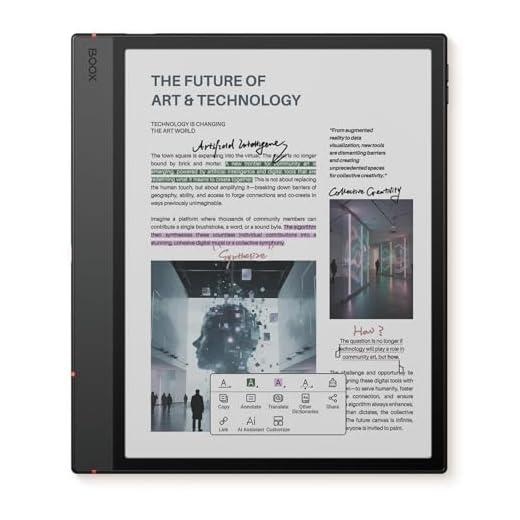
We like that it brings color to the e-ink note-taking world without abandoning the flexibility of Android. It balances reading, sketching, and light app usage while accepting the usual color e-ink trade-offs.
The 10.3-inch Kaleido 3 display delivers 4,096 colors, backed by an Android 15 operating system and a 3,700mAh battery.
10.3-inch Kaleido 3 glass screen, B/W 2480×1860 (300 ppi), Color 1240×930 (150 ppi), 6GB RAM, 64GB ROM, Android 15, 3,700mAh battery, 430g weight.
Pushing 4,096 colors through an E-ink screen changes how you read charts and graphs. The 3,700mAh battery handles days of marking up EPUB files. The primary flaw is the screen itself—Kaleido 3 technology results in a noticeably darker, grayer background compared to standard monochrome displays.
Verdict
Best Premium for Professionals & Academics. Buy this if you specifically need Android 15 app compatibility and 4,096 colors for reading complex charts.
Measuring exactly 6 feet, this shielded DirectSync cable supports USB 3.1 data transfers to keep your E-ink tablet charged.
6-foot length, USB 3.1 hi-speed data transfer, dual-function sync and charge, shielded with rubberized grommet strain reliefs.
You plug this in when your E-ink tablet dies mid-meeting. The 6-foot length means you can actually reach the wall outlet while sitting at your desk. The limitation is that it only includes three third-party tech support inquiries via messaging before you are on your own.
Verdict
Best Budget Color E-Note Tablet. Buy this if your current charging cable forces you to sit on the floor to charge your digital note device.
Designed specifically for the 13.3-inch Fujitsu Quaderno A4 Gen 2, this PU leather case features a 360-degree rotating stand.
Fits 13.3-inch Fujitsu Quaderno A4 Gen 2, 360-degree rotation multi-viewing angles, anti-slip interior, back camera opening.
The 360-degree rotation lets you prop up a 13.3-inch tablet firmly using the anti-slip strips, saving your neck during long reading sessions. The large welt pocket holds business cards. Its major flaw is that it completely lacks auto-sleep/wake functionality, meaning your tablet battery drains if you forget to hit the power button.
Verdict
Best for Full-Page Document Markup. Buy this if you own a 13.3-inch Fujitsu Quaderno and need a rotating stand that prevents neck pain while reading.
Buying Guide
Screen Refresh Rates Matter
E-ink technology relies on physical electrophoretic particles moving across the display to form images. This mechanical process caps your refresh rate significantly lower than standard LCD or OLED screens. When you type rapidly on an E-ink device, the letters lag slightly behind your keystrokes. You will notice ghosting—faint outlines of previous pages—when scrolling through dense PDFs. Buy an E-ink tablet for static reading and deliberate writing, not for rapid typing, video playback, or heavy web browsing where that lag causes serious eye strain and frustration.
The E-Ink Color Trade-Off
Adding color to an E-ink display forces a hardware compromise. Devices using Kaleido 3 technology stack a color filter array over a standard black-and-white screen to produce 4,096 colors. This extra layer drastically reduces light transmission. Your background will look noticeably grayer and darker than a standard monochrome e-reader. Color resolution typically drops to 150 ppi while black-and-white text remains at 300 ppi. If you read standard novels, stick to monochrome. Only buy color E-ink if you actively annotate multi-colored charts or read comic files daily.
App Compatibility and Distractions
Digital note devices fall into two distinct software categories. Closed-ecosystem tablets like the Kindle Scribe completely block external apps, notifications, and social media. You get zero pop-ups while writing, but you cannot install a separate calendar app. Open-ecosystem tablets run full operating systems like Android 15, allowing you to download cloud storage apps, email clients, and productivity tools. Installing standard mobile apps on an E-ink screen drains the battery faster. Choose isolation if you lose focus easily, or Android if you require specific enterprise apps to function.
Storage Capacity and PDF Workflows
A 16GB tablet holds thousands of standard EPUB books but fills up fast when you load it with large, scanned PDF textbooks. Handwriting data also consumes significantly more space than typed text files. If your job involves reading 100-page academic PDFs or reviewing massive architectural documents, 16GB becomes a bottleneck within a few months. Look for devices offering 64GB of storage or integrated cloud syncing via Google Drive or Dropbox. Cloud syncing forces you to rely on Wi-Fi but prevents you from managing internal storage limits manually.
Stylus Power and Replacement Economics
Your writing experience relies entirely on the stylus mechanics. Passive styluses, like the Kindle Premium Pen, use electromagnetic resonance (EMR) technology. They never require charging and function exactly like a real pen. Active styluses require battery power, meaning your pen might die halfway through a lecture. Every E-ink stylus uses physical plastic or felt tips that wear down from friction against the textured glass screen. You will replace these tips every three to six months. Check the price of replacement nibs before committing to a specific tablet ecosystem.
Frequently Asked Questions
Conclusion
If you annotate dense multi-colored PDFs, buy the BOOX Note Air 5 C for its 64GB of storage and 4,096-color display. If you strictly read novels and write distraction-free journal entries, grab the Kindle Scribe. Pick your exact workflow, check the replacement stylus tip prices, and place your order today.
28 responses to “Best Digital Note Devices – Top 8 Picks for Productivity”
Battery notes based on my testing:
– reMarkable 2 lasts ages if you’re just writing/reading (weeks in light use).
– BOOX devices vary: color models and big 13.3″ screens drain faster, but charge quickly.
– Freewrite battery is fine for long sessions but the keyboard eats power if you leave it on sync.
Typos incoming: sometimes the BOOX firmware updates fix things, sometimes they add new quirks lol.
Pro tip: turn off Wi-Fi on the BOOX when you don’t need it and you’ll gain a lot of endurance.
Also worth noting: screen refresh settings and frontlight (if present) have a big impact on battery life across these devices.
Thanks for the breakdown — that’s consistent with what we found. Firmware updates on BOOX can be a double-edged sword: new features but occasional bugs.
Good to know reMarkable still holds up on battery. That’s a huge plus for me — I hate carrying chargers.
I charge my Note Max every 2-3 days with heavy PDF use. Not terrible, but not ‘weeks’ like the reMarkable either.
Seeing the Sony DPT-RP1 renewed on the list brought back memories — had one at my old job for reviewing tons of specs.
Two questions: is buying a renewed unit still worth it today, and how hard is it to get it to play nicely with modern cloud services?
Renewed Sony DPTs are great if your main need is clean, fast PDF reading and markup. Integration with modern cloud services is limited out of the box; you’ll usually need a transfer workflow via desktop (or third-party scripts) to sync files.
I used a renewed RP1 for a while — excellent for reading, but prepare for some fiddling if you want seamless cloud sync. If you need apps and Android, BOOX would be a better fit.
I’ve been flirting with the Freewrite for ages. As a novelist-type who gets distracted by tabs, apps, and doomscrolling, the single-purpose approach appeals so much.
Has anyone actually finished drafts on it? How do you get chapters out and into your regular writing workflow?
Also — the keyboard scares me a little (I like my tactile mechanicals). Any keyboard opinions?
I used a Freewrite for a short novella draft — exported over Dropbox. It felt weird at first but the flow is real. The keyboard becomes fine after a few sessions.
Writers often export via USB or Wi-Fi and then import into their main editor. Many report it helps form first drafts faster because the distraction removal keeps momentum. The keyboard is different from mechanicals but optimized for comfortable, long sessions.
FYI: backups are super easy via cloud. If you value uninterrupted writing, it’s pricey but effective. ????
I tried the Freewrite at a friend’s place — not great for heavy editing, but superb for getting a first draft out. If you’re editing a lot, bring your main setup back in afterward.
I own a reMarkable 2 and have been eyeing the reMarkable Paper Pro.
The larger 11.8″ screen sounds amazing for sketching and long-form notes.
Anyone who upgraded from the 10.3″—was the battery hit bad with the color features?
I love the “distraction-free” thing but want a bit more canvas without sacrificing the feel.
Also curious about that Marker Plus eraser — is it as responsive as people claim?
I haven’t tried the Paper Pro, but if you like paper feel + fewer distractions, it’s totally worth testing in-store if possible. The screen real estate is a game changer for whiteboarding stuff.
If you’re coming from the reMarkable 2, the Paper Pro gives noticeably more space and the color annotations are neat for diagrams. Battery will be a bit more taxed if you use color often, but for note/sketch workflows most users still get legit multi-day use between charges.
I upgraded last month — battery is slightly shorter but still fine for daily use. The Marker Plus eraser feels natural; took one day to get used to it.
I picked up the Note Air 4C and it’s been lovely for meeting notes and light sketching. Clean UI, decent color for highlights. ????
Glad it’s working well for you! The 4C is a strong value for color e-ink note-takers.
Nice — how’s the latency with the stylus? Any ghosting when erasing?
I have mixed feelings about the BOOX color models (Tab X C vs Note Air 5 C).
They’re the closest thing to color e-ink right now, but the colors are kinda muted — not tablet-lifelike.
If you need accurate color for illustrations, they’re still a compromise.
But for note-taking + occasional color diagrams they do a great job.
A bit sarcastic: it’s color, but like watercolor through a fogged window. ????
That’s a fair summary. BOOX color screens are useful for highlighting and simple color diagrams, but they won’t replace an iPad Pro for vibrant color work.
Haha that fogged window line made me laugh. I agree — good for annotated PDFs and charts, not for full-color artwork.
For comics or sheet music, the larger color BOOX is nice because of layout control, even if color fidelity isn’t perfect.
Big shoutout to the BOOX Note Max 13.3 — as a grad student who deals with huge PDFs and complex equations, the big monochrome screen has saved my sanity.
Question for anyone using it for math: how’s the responsiveness when writing long equations? Does it lag with big files?
The Note Max handles large PDFs well thanks to the high-res Carta panel and the hardware specs (6G/128G). You might see occasional redraws with very large, image-heavy PDFs, but for handwritten math it’s generally snappy.
I use it for lecture notes and LaTeX-printed problem sets — rarely lags. If you multitask with lots of Android apps open it can slow, but for straight annotation it’s solid.