Typing on a flat Apple Magic Keyboard looks great but often leads to aching wrists and stiff fingers. Many Mac users spend eight or more hours a day typing code, emails, or reports. That repetitive motion takes a toll on your hands over time. Switching to an ergonomic layout can relieve that tension and keep you comfortable. You do not have to sacrifice your Mac compatibility to get a healthier typing posture.
Finding the right fit depends on your specific typing habits and desk setup. We tested several options to see which ones actually help reduce strain during long work sessions. The Logitech Ergo K860 Wireless Ergonomic Keyboard offers a familiar curved layout that eases you into ergonomic typing. If you need more customization, the KINESIS Freestyle2 Ergonomic Keyboard lets you physically separate the halves. Both models connect easily to your Mac and respect your existing muscle memory.
This guide breaks down the top ergonomic keyboards available for Mac users right now. We look closely at key switches, wrist support, and overall layout adjustments. Some boards use a single curved frame, while others split completely in two. You will learn exactly what makes each model unique and where they might fall short. Read on to find the keyboard that matches your daily workflow and physical needs.



#1 Logitech Ergo K860 Wireless Ergonomic Keyboard – Split Keyboard,
Logitech Ergo K860 Wireless Ergonomic Keyboard
The Logitech Ergo K860 Wireless Ergonomic Keyboard is a single-piece split keyboard that targets users wanting a gentle transition into ergonomic typing. It keeps the left and right key clusters attached but angles them to match the natural resting position of your hands. This layout suits office workers and writers who want relief from wrist pain without relearning how to type from scratch. The board takes up a fair amount of desk space due to its integrated wrist rest. It connects reliably via wireless protocols and works well within a standard Mac environment. You get a full-size layout complete with a number pad.
Performance centers around the curved keyframe and the heavily cushioned palm support. The pillowed wrist rest features a memory foam layer that provides significant support compared to typing on a hard desk. Logitech includes scooped keys that match the shape of your fingertips to help you strike each key accurately. You can adjust the palm lift to keep your wrists in a neutral posture whether you sit or stand at your desk. The United States Ergonomics certification backs up the claims of improved typing posture. The keys themselves offer a quiet and consistent stroke.
Compared to the Kinesis Advantage360, the Ergo K860 is much easier for beginners to pick up and use immediately. It lacks the extreme bowl-shaped keywells of the Kinesis models but still provides a massive comfort upgrade over a flat Apple keyboard. The fixed split design means you cannot adjust the distance between your hands like you can with the Freestyle2. This makes it a solid middle ground for someone who wants better ergonomics without a steep learning curve. The attached wrist rest is not removable, so you need a deep enough desk to accommodate it. It remains a highly practical choice for daily Mac users.
#2 KINESIS Freestyle2 Ergonomic Keyboard w/ VIP3 Lifters for Mac
Kinesis Freestyle2 Keyboard for Mac (VIP3)
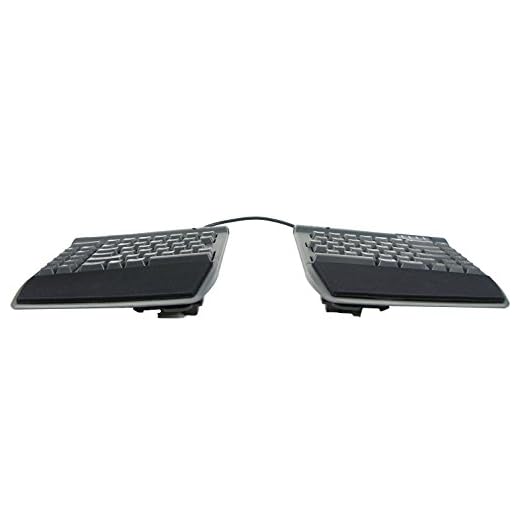
The KINESIS Freestyle2 Ergonomic Keyboard takes a modular approach to typing comfort by splitting the board into two completely separate halves. This setup appeals to Mac users who have broad shoulders or experience chest tightness from typing on narrow keyboards. You can place the two modules up to nine inches apart to find your ideal typing width. It comes pre-assembled with the VIP3 tenting accessory and palm supports right out of the box. The standard Mac layout ensures you keep your familiar hotkeys for media and editing tasks. It is a highly adaptable tool for anyone dealing with specific upper body strain.
The physical separation allows you to rotate and angle the key modules independently. The included VIP3 lifters enable adjustable tenting, which raises the inner edges of the keyboard to reduce forearm pronation. Kinesis uses custom membrane key switches that require a low activation force. These switches provide a tactile feel without the loud clack of traditional mechanical keyboards. The pre-installed palm supports give your hands a comfortable place to rest between typing bursts. Having the Mac-specific keys like Cut, Copy, and Paste ready to go saves time during busy workdays.
The Freestyle2 offers much more physical flexibility than the fixed-frame Logitech Ergo K860. You can push the halves out of the way to make room for a drawing tablet or notebook in the center of your desk. However, the membrane switches might not satisfy users who prefer the crisp mechanical feel of the Advantage360. The cables connecting the two halves can look a bit messy if you prefer a minimalist workspace. It requires some trial and error to find the exact tenting angle and separation distance that works for you. Once dialed in, it provides a highly personalized typing experience.
#3 KINESIS
Kinesis Freestyle2 Keyboard for Mac (V3)
This KINESIS ergonomic keyboard offers a reliable typing experience for Mac users who need serious wrist relief. The brand has a long history of building peripherals that prioritize human anatomy over sleek aesthetics. It suits heavy typists, programmers, and data entry professionals who spend their entire day at the computer. The layout encourages you to keep your hands in a neutral position to avoid pinching nerves in your wrists. It takes up a moderate amount of space on your desk but justifies the footprint with its comfort benefits. You will need a few days to adjust to the key placement if you are coming from a flat laptop keyboard.
The keyboard focuses on reducing the physical effort required to press each key. By minimizing finger extension and awkward wrist angles, it helps prevent the fatigue that sets in after hours of typing. The keycaps are shaped to guide your fingers to the center of each switch for better accuracy. It provides a stable typing platform that does not slide around your desk during intense work sessions. The tactile feedback lets you know exactly when a key registers, which helps reduce bottoming out. This careful attention to typing mechanics makes a noticeable difference in daily comfort.
When placed next to the Microsoft Sculpt, this KINESIS model generally offers a more solid build quality and a steeper learning curve. It lacks the completely separate modules of the Freestyle2 but still provides excellent ergonomic support. Users who want a plug-and-play experience might find the initial adjustment period frustrating. However, the long-term benefits for your wrists and forearms make the effort worthwhile. It stands as a solid investment for anyone serious about their workstation ergonomics. The straightforward design focuses entirely on function over flashy features.
#4 Microsoft Sculpt Ergonomic Wireless Desktop Keyboard and Wireless
Microsoft Sculpt Ergonomic Keyboard & Mouse
The Microsoft Sculpt Ergonomic Wireless Desktop Keyboard brings a distinct, modern look to the ergonomic market. It features a split keyset design with a prominent cutout in the center to angle your hands outward. This bundle includes the main keyboard, a separate number pad, and an ergonomic mouse. It appeals to Mac users who want a complete workstation overhaul in a single package. The separate number pad provides greater flexibility for your workspace setup since you can move it out of the way when not in use. The included Bluetooth USB module handles the wireless connection for all the devices.
The typing experience relies on a Natural Arc key layout that mimics the curved shape of your fingertips. A domed keyboard design positions your wrists and forearms in a natural, relaxed posture. The cushioned palm rest provides ample support and promotes a neutral wrist position while you type. Microsoft also includes Advanced Encryption Standard technology to secure your keystrokes over the wireless connection. The keys have a short travel distance similar to a laptop, which allows for fast typing speeds. The included mouse features a rounded shape that encourages a healthy handshake grip.
The Microsoft Sculpt is much more compact than the Logitech Ergo K860, especially since the number pad is detached. This makes it a great option for users with limited desk space or those who use a mouse heavily and want it closer to the keyboard. The membrane keys do not offer the mechanical feedback found on the Kinesis Advantage360. Some users might find the domed shape takes a week or two to get used to. The wireless USB receiver is required for operation, which means you will need an adapter if your Mac only has USB-C ports. Overall, it is a highly functional and stylish ergonomic bundle.
#5 Kinesis Advantage360 Professional Split Ergonomic Keyboard –
Kinesis Advantage360 Professional Keyboard
The Kinesis Advantage360 Professional Split Ergonomic Keyboard is a highly specialized tool for power users and developers. It completely reimagines the traditional keyboard layout by placing the keys in two separate, bowl-shaped clusters. This radical design targets Mac users who suffer from severe typing pain or want to maximize their typing efficiency. The two halves communicate wirelessly, allowing you to place them at any distance or angle on your desk. It requires a significant commitment to relearn how to type, as many common keys are moved to thumb clusters. Those who make the switch rarely go back to standard keyboards.
The defining feature of this keyboard is its concave keywells. These wells are scooped into a bowl shape to reduce hand and finger extension while relaxing your muscles. By separating the key clusters, the Advantage360 allows your shoulders to rest in a completely natural posture. The mechanical switches provide precise, satisfying feedback with every keystroke. You can adjust the tenting angle of each half to match the natural pronation of your forearms. The thumb clusters handle high-use keys like space, backspace, and enter, which takes the workload off your weaker pinky fingers.
This keyboard sits at the extreme end of the ergonomic spectrum compared to the gentle curve of the Microsoft Sculpt. The Advantage360 Professional offers unparalleled customization and physical adjustability. The learning curve is steep, and you will likely experience a drop in typing speed during the first few weeks. It also commands a high price and takes up a significant amount of desk space. However, for Mac users dealing with chronic repetitive strain injuries, this keyboard offers a highly effective solution. It is a professional-grade instrument for those who type for a living.
Buying Guide
Understanding Split Keyboard Layouts
Ergonomic keyboards generally fall into two main categories of split designs. The first is a fixed split, where the keys are divided into two angled clusters on a single, solid frame. This style gently forces your hands into a more natural position without requiring you to manage multiple pieces of hardware. It is highly approachable for beginners who want to improve their posture quickly. You retain the familiar feeling of a standard keyboard while gaining noticeable wrist relief.
The second category is a fully separated split keyboard. These models consist of two independent halves connected by a cable or a wireless link. This allows you to place the left and right sides as far apart as you need. People with broad shoulders benefit greatly from this setup because it prevents them from hunching inward. You can also place a trackpad or a microphone right in the middle of your desk.
Choosing between a fixed and a fully separated layout depends on your workspace and your physical needs. Fixed frames are easier to use on your lap or on a small keyboard tray. Separated halves require a larger, flat desk surface to remain stable. If you share your computer with someone else, a fixed split is usually easier for them to adapt to on the fly. Consider how much time you are willing to spend adjusting your setup before making a decision.
The Importance of Tenting and Tilting
Tenting refers to raising the inner edges of the keyboard halves so they peak in the middle like a tent. When you place your hands flat on a standard desk, your forearms are forced into an unnatural, pronated position. Tenting allows your hands to rest at a slight angle, similar to how you hold a steering wheel. This minor adjustment relieves a massive amount of tension in your forearms and elbows. Many advanced ergonomic boards offer adjustable tenting angles to suit your specific anatomy.
Tilting, on the other hand, involves adjusting the front-to-back angle of the keyboard. Traditional keyboards often feature pop-up feet at the back, which creates a positive tilt. This actually forces your wrists to bend upward, increasing the risk of strain and pinched nerves. Ergonomic models often use a negative tilt, raising the front edge of the keyboard instead. This keeps your wrists straight and aligned with your forearms while you type.
Finding the right combination of tenting and tilting requires some experimentation. Start with a low tenting angle and a neutral, flat tilt to see how your body reacts. Gradually increase the angles over a few weeks until you find the most comfortable position. Pay attention to any lingering aches in your wrists or shoulders, as these are signs you need to adjust your setup. A highly adjustable keyboard gives you the freedom to change your posture throughout the workday.
Key Switches and Typing Feedback
The type of switches under your keycaps drastically alters your typing experience. Membrane switches use a rubber dome to register keystrokes, resulting in a quiet and soft feel. They are highly common in office environments because they do not produce loud clicking noises. However, membrane keys require you to press the key all the way down to the bottom to register the input. This bottoming out can cause jarring impacts on your finger joints over long periods.
Mechanical switches use individual physical mechanisms for each key. They offer distinct tactile feedback, letting you feel exactly when the key press is registered. This allows you to stop pressing before the key hits the bottom of the board, reducing finger fatigue. Mechanical switches come in various styles, including linear, tactile, and clicky options. You can choose the exact amount of resistance and noise that fits your typing style.
Low-profile switches offer a middle ground between traditional mechanical keys and laptop-style keyboards. They have a shorter travel distance, which allows your fingers to glide quickly across the board. This style is highly popular among Mac users who are accustomed to the flat Magic Keyboard. When choosing a switch type, consider your typing speed and your sensitivity to noise. The right switch will make typing feel less like a chore and more like a natural extension of your hands.
Wrist Rests and Desk Ergonomics
A good wrist rest is a crucial component of an ergonomic typing station. Despite the name, you should actually rest the heels of your palms on the pad, not your wrists. Resting your wrists directly on a hard surface compresses the carpal tunnel and restricts blood flow. A firm but cushioned palm support raises your hands to the correct height for the keys. This prevents you from bending your hands backward while reaching for the top row.
The material of the palm rest also matters for long-term comfort. Memory foam provides excellent support and conforms to the shape of your hands. Gel pads offer a cooler surface but can sometimes feel too firm or degrade over time. Some keyboards feature integrated, non-removable rests, while others offer detachable options. If your keyboard does not come with a palm support, you can easily purchase a standalone pad to improve your setup.
Your keyboard is only one part of a healthy desk environment. You must also consider the height of your chair and your desk. Your elbows should rest at a ninety-degree angle, and your feet should be flat on the floor. Position your monitor so the top third of the screen is at eye level to prevent neck strain. Combining a good ergonomic keyboard with proper desk posture will yield the best results for your physical health.
Final Verdict
Upgrading your Mac workstation with an ergonomic keyboard is a smart investment in your physical health. The Logitech Ergo K860 Wireless Ergonomic Keyboard provides a highly comfortable, fixed-split design that is easy for anyone to adopt. If you need more physical separation to open up your chest and shoulders, the KINESIS Freestyle2 Ergonomic Keyboard offers excellent modularity. Both options respect your Mac muscle memory while correcting your posture.
For users who want a complete desktop overhaul, the Microsoft Sculpt Ergonomic Wireless Desktop Keyboard delivers a stylish and functional bundle. Power users dealing with severe strain should look directly at the Kinesis Advantage360 Professional Split Ergonomic Keyboard for its radical, highly effective bowl-shaped layout. Take the time to evaluate your desk space and your specific pain points before making a choice. Finding the right fit takes a little patience and trial and error. Your wrists will thank you after your next long typing session.