Ergonomic Dual Monitor Setup: Tips for Comfort and Productivity

If you’ve ever juggled multiple tasks on a single screen, you know the struggle. Setting up dual monitors can be a game-changer for productivity and comfort, transforming your workspace into a powerhouse of efficiency. In my experience, getting the setup right is crucial to avoid neck strain, eye fatigue, and general discomfort. Let’s dive into how you can set up dual monitors ergonomically, ensuring your workspace is both functional and healthy.
Choosing the Right Monitor Stands
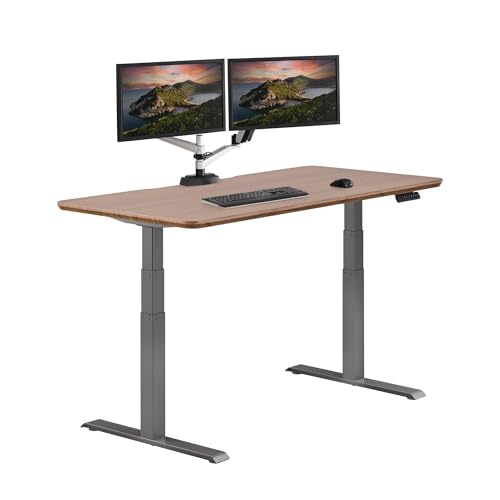
When it comes to dual monitors, the right stands make all the difference. I’ve found that adjustable stands like the VIVO Stand-V002 keep your screens at eye level, which is key to maintaining good posture. For a more dynamic setup, the Ergotron LX Monitor Arm offers flexibility to tilt and swivel screens to your perfect viewing angle. Both have been game-changers in reducing neck strain for me. A solid stand or arm not only optimizes desk space but also helps maintain an ergonomic setup tailored to your specific needs.
Positioning Your Monitors Correctly
Proper monitor positioning is crucial for comfort. The screens should be about an arm’s length away from where you sit, with the top of the screen at or just below eye level. Personally, keeping monitors side-by-side with a slight inward angle works best. This setup minimizes head movement and eye strain. Also, ensure the primary monitor is directly in front of you, with the secondary one next to it, so you can seamlessly switch your focus between tasks.
Optimizing Your Desk Setup
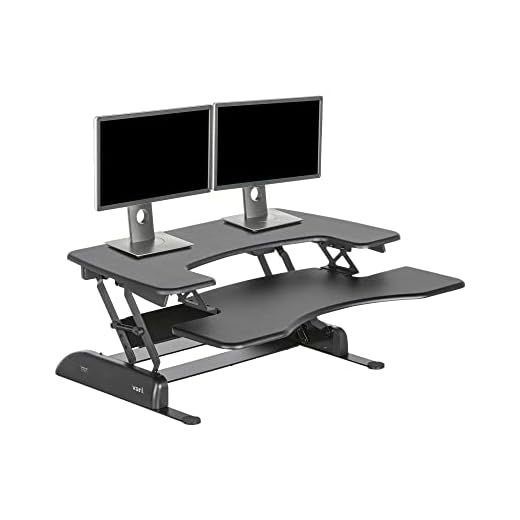
Your desk layout plays a pivotal role in an ergonomic setup. I’ve had great success with the Vari VariDesk Pro Plus 36, which offers ample space for a dual monitor setup and allows for easy height adjustments. This helps in maintaining an ergonomic posture whether sitting or standing. Arrange your keyboard and mouse directly in front of your primary monitor to prevent unnecessary twisting of your torso. Keeping these items within easy reach helps you maintain a neutral wrist position, reducing the risk of strain.
Adjusting Lighting and Reducing Glare
Lighting can make or break your monitor setup. I’ve learned that natural light is best, but ensuring your monitors are angled to reduce glare is crucial. Positioning your desk perpendicular to windows helps minimize reflections. Also, consider using an anti-glare screen protector if your setup is prone to catching light. This reduces eye strain and keeps your focus sharp throughout the day.
???? Key Takeaways
- Choose adjustable monitor stands for flexibility and comfort.
- Position monitors at eye level and arm’s length away.
- Keep your primary monitor centered and secondary one adjacent.
- Optimize desk arrangement to reduce strain on wrists and neck.
- Adjust lighting to reduce glare and minimize eye strain.
Recommended Products
Based on my experience with this topic, here are products that can help:


Final Thoughts
Setting up dual monitors ergonomically is more than just about productivity—it’s about comfort and health. By carefully choosing the right equipment and positioning everything optimally, you can create a workspace that supports your body and enhances your workflow. Remember, small adjustments can lead to significant improvements in your daily routine. With these tips, you’re set to enjoy the benefits of an optimized dual monitor setup. Trust me, once you get it right, there’s no going back!