Turn One Cable Into a Full Multi-Monitor Desk
A good USB-C dock replaces a tangle of five cables with one, and a bad one drops your third monitor the moment you plug in a flash drive.
The difference between a dock that disappears into your workflow and one that becomes a daily annoyance comes down to two things: whether it uses DisplayLink to drive extra displays past your laptop’s native output limit, and whether the power delivery is strong enough to charge while it’s pushing pixels. Port count numbers look impressive on the box, but what actually matters for a home office is monitor count, resolution ceiling, and whether the dock stays cool and stable during an eight-hour workday.
- DisplayLink unlocks a third monitor Most laptops can only natively drive one or two external displays through USB-C alt mode. DisplayLink compression technology is what lets a dock add a third 4K screen without a dedicated GPU.
- Resolution and refresh rate aren't the same claim A dock rated for 4K@120Hz on DisplayPort often drops to 4K@60Hz over HDMI on the same unit — check per-port specs, not just the headline number.
- PD wattage determines whether you still need the laptop charger Docks rated 100W PD can fully charge most productivity laptops through the dock cable alone; anything lower may only slow the drain during heavy multi-monitor use.
- Cable distance is a real ergonomic factor Docks are usually tethered a few inches from the laptop, which forces awkward desk layouts; a short USB-C extension lets you mount the dock wherever your ports actually need to reach.


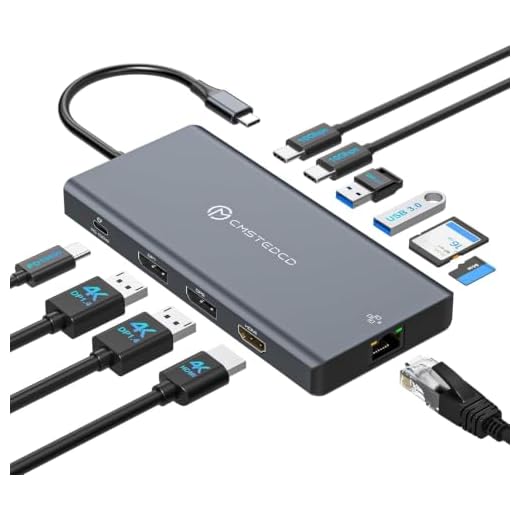


Best Overall: DisplayLink Docking Station 3 Monitors, 19 in 1 Laptop Docking Station
Runs three 4K@60Hz monitors off 19 ports in one cable, with dual DisplayPort plus HDMI outputs built for demanding multi-monitor home office setups.
- Genuinely runs three separate 4K@60Hz displays, not just mirrored or downscaled outputs
- 19 ports covers Ethernet, card readers, and multiple USB-A/C without a second hub
- DisplayLink drivers work across both Windows and macOS setups
- One cable to the laptop keeps the desk clear even with three monitors running
- DisplayLink relies on software compression, so it adds a small amount of GPU/CPU overhead versus native video output
- First-time setup requires installing DisplayLink drivers before displays are recognized
- Bulkier than single-cable HDMI-only docks given the port count
Best Premium: Belkin DisplayLink Dual Display Docking Station
Belkin’s 14-in-1 hub extends dual 4K@60Hz displays and delivers 100W laptop charging through a single USB-C cable for a clutter-free premium desk.
- 100W PD charges most laptops fully through the single USB-C cable
- Belkin’s DisplayLink implementation is notably stable under long daily use
- 14-in-1 port layout covers most peripherals without needing a separate hub
- Backed by Belkin’s support and warranty infrastructure, which matters for a daily-driver dock
- Caps out at two monitors, so it’s not the pick if you need three displays
- Costs more than docks with equal or higher monitor counts
- No meaningful spec advantage over cheaper dual-display docks besides brand reliability
Best Value: USB C Laptop Docking Station 3 Monitors with Dual DisplayPort 4K@120Hz and HDMI 4K@60Hz
12-in-1 dock drives dual 4K@120Hz DisplayPort plus HDMI 4K@60Hz across three monitors, with 10Gbps USB-C and 100W PD, at a mid-range price.
- Supports three monitors with a 120Hz DisplayPort output, unusual at this price point
- 100W PD passthrough keeps the laptop charged during heavy multi-monitor use
- 10Gbps USB-C data transfer is fast enough for external SSD workflows
- Rounds out the port set with Ethernet, SD, and TF card slots
- 120Hz only applies to the DisplayPort outputs — HDMI is capped at 4K@60Hz
- 12-in-1 port count is solid but trails the top-tier docks here
- Thunderbolt branding on the box doesn’t guarantee full Thunderbolt bandwidth on every laptop
Runner Up: WAVLINK Laptop Docking Station, Dual HDMI
WAVLINK’s 10-in-1 dock pushes dual HDMI 4K@60Hz displays and 85W laptop charging in a compact, travel-ready build for a secondary home office setup.
- Dual HDMI 4K@60Hz covers most dual-monitor home office setups without adapters
- 85W charging is enough for typical productivity laptop workloads
- Compact footprint makes it easy to move between a home office and a second location
- Full 10-in-1 port set at the same price as the Best Value pick
- Caps at two monitors — no path to a third display
- 85W charging falls short of full-speed charging on higher-draw gaming or workstation laptops
- HDMI-only video output offers less flexibility than docks with DisplayPort options
Best Budget: SWITCHFLUX USB C Docking Station Dual Monitor
SWITCHFLUX packs dual HDMI, 100W PD charging, and Gigabit Ethernet into a 10-in-1 hub, delivering dual-monitor support at the lowest price here.
- Lowest price of any full docking station in this roundup
- 100W PD charging is a rare feature to find at this price
- Gigabit Ethernet gives a stable wired connection for video calls without relying on Wi-Fi
- 10-in-1 port layout covers the essentials for a basic dual-monitor desk
- 4K output caps at 30Hz, which feels noticeably less smooth for cursor movement and scrolling than 60Hz
- Build materials are lighter-duty than the pricier docks here
- No support for a third display if your setup grows
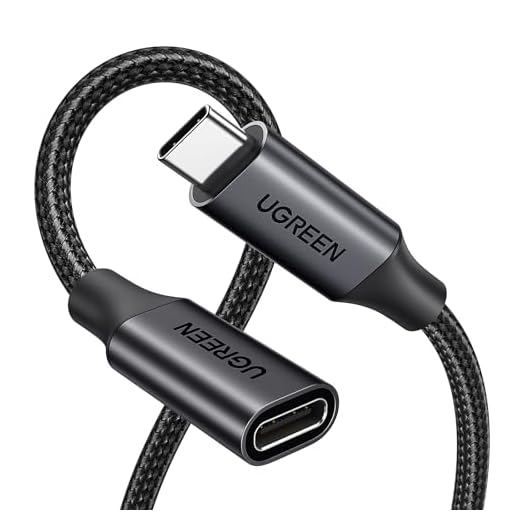
Best for Cable Management: UGREEN USB C Extension Cable
This 10Gbps, 100W USB-C extension cable moves your dock further from your laptop, taming cable clutter without sacrificing 4K video or fast charging.
- Passes full 10Gbps data speeds, so it won’t bottleneck 4K video or fast external drives
- 100W PD passthrough means charging speed isn’t sacrificed by adding length
- Lets you mount or hide the dock away from the desktop, cleaning up cable clutter
- Cheap enough to be a no-brainer add-on to any dock purchase
- Adds one more connection point, which is one more thing that can loosen over time
- 3.3 ft won’t be enough if your dock needs to sit across the room from the laptop
- Not a dock itself — only useful paired with one of the docks above
Side-by-side comparison
|
Best Overall
DisplayLink Docking Station 3 Monitors, 19 in 1 La
|
Best Premium
Belkin DisplayLink Dual Display Docking Station
|
Best Value
USB C Laptop Docking Station 3 Monitors with Dual
|
Runner Up
WAVLINK Laptop Docking Station, WAVLINK Docking St
|
Best Budget
SWITCHFLUX USB C Docking Station Dual Monitor, 10-
|
Best for Cable Management
UGREEN USB C Extension Cable, (10Gbps/100W) USB C
|
|
|---|---|---|---|---|---|---|
|
|
|
|
|
|
|
|
| Monitors Supported | 3 | 2 | 3 | 2 | 2 | — |
| Max Resolution | 4K@60Hz | 4K@60Hz | 4K@120Hz (DP) / 4K@60Hz (HDMI) | 4K@60Hz | 4K@30Hz | — |
| Port Count | 19-in-1 | 14-in-1 | 12-in-1 | 10-in-1 | 10-in-1 | N/A |
| Laptop Charging (PD) | Not specified | 100W | 100W | 85W | 100W | 100W passthrough |
| Price | $139.99 | $219.99 | $49.99 | $49.99 | $34.99 | $15.99 |
| BUY NOW | BUY NOW | BUY NOW | BUY NOW | BUY NOW | BUY NOW |
What to look for in USB-C Docking Stations for Multi-Monitor Home Offices
Do I need DisplayLink technology to run three monitors from one USB-C dock?
In almost all cases, yes. Most laptop GPUs only support one or two external displays through native USB-C video output, so a third monitor requires DisplayLink’s software-driven video compression to add that extra output. Check for DisplayLink branding specifically if a three-monitor setup is the goal.
How much PD wattage do I actually need to charge my laptop while docked?
Match or exceed your laptop’s stock charger wattage — most productivity laptops ship with 65-100W chargers. A 100W PD dock will fully charge most laptops during normal use, while lower wattage docks may only slow the battery drain during demanding multi-monitor sessions.
Can any of these docks run all monitors at 4K@120Hz?
Only the DisplayPort outputs on the Best Value pick reach 4K@120Hz, and that’s specific to DisplayPort — its HDMI output still caps at 4K@60Hz. None of the docks here run 120Hz across every output simultaneously, so check per-port specs if a high refresh rate matters for your monitors.
Why would I need a USB-C extension cable with a docking station?
Most docks are tethered just a few inches from the laptop, which forces the laptop and dock into an awkward cluster on the desk. A certified 10Gbps/100W extension cable lets you mount or relocate the dock without losing video quality or charging speed.
The bottom line
- DisplayLink Docking Station 3 Monitors — the most complete three-monitor solution here, worth it if you won't compromise on port count or display count
- Belkin DisplayLink Dual Display Docking Station — pay the premium for rock-solid dual-monitor reliability and full 100W charging
- USB C Laptop Docking Station 3 Monitors (12-in-1) — three monitors and a 120Hz DisplayPort output at less than half the price of the premium picks
- WAVLINK Dual HDMI Docking Station — a solid dual-monitor dock for a secondary desk or travel setup
- SWITCHFLUX USB C Docking Station — the cheapest way into dual 4K monitors with Ethernet and 100W charging
- UGREEN USB C Extension Cable — a $13 add-on that solves the cable-clutter problem every dock on this list creates
For most home offices running three monitors, the DisplayLink 19-in-1 dock is the safest all-around buy, while the 12-in-1 Thunderbolt hub gets you nearly the same capability for a third of the price. If you only run two displays, Belkin’s premium dock and the budget SWITCHFLUX option sit at opposite ends of the same use case.