Draw Longer Without Wrecking Your Wrists
The tablet you draw on matters less than the angle you draw at.
Most artists chase resolution and pressure levels and ignore the thing actually causing their shoulder and wrist pain: hunching over a flat slab on a desk for four hours straight. A great drawing setup pairs a responsive display and stylus with hardware that lets you tilt the screen into a neutral wrist position, because no amount of pressure sensitivity fixes bad posture.
- The stand matters as much as the tablet A flat tablet on a desk forces wrist extension for hours at a stretch. An adjustable stand that tilts 20-80 degrees lets you match the surface angle to your natural drawing posture.
- Pressure sensitivity varies more than pixel count The Surface Pen’s 4,096 pressure levels and near-zero lag matter more for fatigue than screen resolution — a stylus that lags makes you press harder and grip tighter without realizing it.
- Battery-free styluses save more than money EMR pens like the Wacom One never need charging, which means no mid-session dead battery forcing you to grip differently or switch tools.
- iPads still lead for all-around ergonomics A lightweight, tiltable tablet you can prop at any angle beats a fixed monitor setup for anyone who moves between the couch, desk, and lap during a work session.




Best Overall: Apple iPad Air 11-inch (M2)
M2 chip powers smooth multitasking while Apple Pencil Pro support delivers pressure-sensitive, low-lag sketching on an 11-inch Liquid Retina display.
- M2 chip handles layered Procreate files and 4K video export without slowdown
- Apple Pencil Pro adds barrel roll and squeeze gestures that cut down on menu-diving
- Light enough to prop on a stand, hold in your lap, or use flat without added strain
- 512GB storage means you’re not constantly offloading finished art
- $799 price puts it well above dedicated drawing displays in this lineup
- Pencil Pro sold separately adds another $129 to the real cost
- 11-inch screen feels tight for detailed illustration compared to a 16-inch pen display
Best Value: Apple iPad (10th Generation)
A14 Bionic chip and Apple Pencil support with Scribble handwriting-to-text give budget-conscious artists a responsive 10.9-inch canvas at half the cos
- Half the price of the iPad Air while still running Procreate and Photoshop smoothly
- 10.9-inch display gives real working room for sketching and inking
- Scribble handwriting-to-text is genuinely useful for annotating reference sheets
- Same lightweight form factor that works propped, flat, or handheld
- 64GB fills up fast once you’re exporting layered PSD or Procreate files
- Only supports the older, less pressure-nuanced Apple Pencil (1st gen or USB-C)
- A14 chip noticeably lags the M2 on heavy multi-layer brushwork
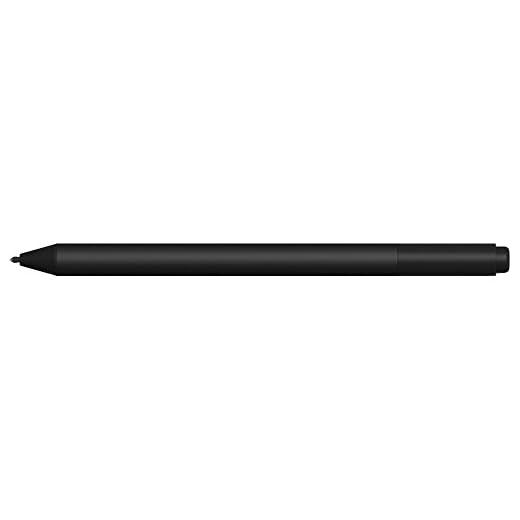
Best for Precision Control: Microsoft Surface Pen
4,096 pressure points and near-zero lag give artists fine-grained shading and line control that feels like ink flowing straight from the tip.
- Pressure response is fine enough that you stop pressing harder to compensate for lag
- Tilt sensitivity enables natural shading without switching brush settings
- Compact barrel shape reduces the death-grip that causes hand cramping
- Pairs magnetically to Surface devices for quick charging between sessions
- Only works with Surface hardware, so it’s a non-starter for iPad or Wacom users
- $93.99 is steep for an accessory you could lose in a bag
- Uses a AAAA battery instead of built-in rechargeable, which is an easy one to forget to restock
Best Budget Stylus: Wacom One Pen
Battery-free EMR technology means this pen never needs charging, so budget artists keep pressure and tilt sensitivity without breaking a drawing sessi
- Never needs charging, so it’s always ready when you sit down to draw
- Pressure and tilt sensitivity rival pens costing three times as much
- Lightweight build reduces hand fatigue over long inking sessions
- Low price makes it an easy first upgrade for beginners
- Only compatible with Wacom One 12, 13, and 14 displays, not other Wacom lines
- No customizable buttons beyond the basic two side switches
- Nib wears down faster than premium alternatives and needs periodic replacement
Best Ergonomic Stand: Parblo PR120 Drawing Tablet Stand
A 20°-80° tilt range lets you angle your drawing monitor into a neutral wrist position, cutting strain during long illustration sessions on screens up
- 80-degree max tilt lets you draw nearly upright, which is a real relief for the neck during long sessions
- Handles monitors up to 32 inches, covering most pen displays on the market
- Elevates the screen to reduce the downward head-tilt that causes neck strain
- Sturdy enough that aggressive pen strokes don’t rock the display
- Takes up more desk depth than working with a tablet flat on the surface
- Setup requires screwing into your monitor’s VESA mount, which isn’t tool-free
- $59.99 is an added cost on top of an already expensive pen display
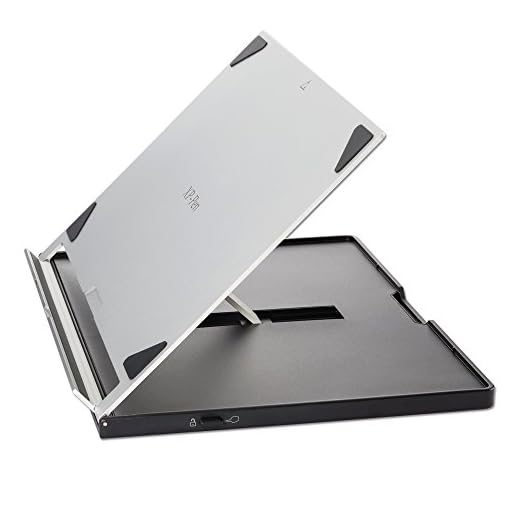
Runner Up Stand: XP-PEN AC18 Multifunctional Metal Drawing Pen Tablet Stand
Aluminum alloy construction adjusts from 0° to 65° in 1° increments, giving finely tuned ergonomic positioning at a lower price than premium stands.
- 1-degree adjustment increments let you dial in the exact angle instead of settling for close enough
- Aluminum alloy build feels sturdier than the price suggests
- Anti-skid feet keep the stand planted during fast, heavy strokes
- Cheaper than the Parblo while covering most of the same ergonomic ground
- 65-degree max tilt falls short of the Parblo’s 80 degrees for near-vertical positioning
- Smaller footprint suits mid-size displays better than the largest 32-inch monitors
- Metal edges can feel sharp compared to rounded plastic stands
Side-by-side comparison
|
Best Overall
Apple iPad Air 11-inch (M2): Built for Apple Intel
|
Best Value
Apple iPad (10th Generation): with A14 Bionic chip
|
Best for Precision Control
Microsoft Surface Pen, Charcoal Black, Model: 1776
|
Best Budget Stylus
Wacom One Pen, for Wacom One 12, 13 & 14 CP91300B2
|
Best Ergonomic Stand
Parblo PR120 Drawing Tablet Stand,for 13.3 to 32 i
|
Runner Up Stand
XP-PEN AC18 Multifunctional Metal Drawing Pen Tabl
|
|
|---|---|---|---|---|---|---|
|
|
|
|
|
|
|
|
| Product Type | Tablet | Tablet | Stylus | Stylus | Stand | Stand |
| Tilt/Angle Range | Handheld or stand-dependent | Handheld or stand-dependent | N/A | N/A | 20°-80° | 0°-65° |
| Pressure Sensitivity | Apple Pencil Pro (dynamic) | Apple Pencil (standard) | 4,096 levels | Pressure + tilt (EMR) | N/A | N/A |
| Battery-Free Design | No | No | No | Yes | Yes | Yes |
| Best For | All-around use | Budget entry point | Surface owners | Wacom One owners | Large pen displays | Precise angle tuning |
| Price | $799.00 | $449.00 | $100.39 | $32.95 | $59.99 | $49.99 |
| BUY NOW | BUY NOW | BUY NOW | BUY NOW | BUY NOW | BUY NOW |
What to look for in Graphics Drawing Tablets for Ergonomic Digital Creative Work
Do I need a separate stand if I'm using an iPad?
It helps more than most people expect. Even a lightweight iPad held flat on a table forces the same wrist extension as a heavier pen display. A basic adjustable stand or even a foldable case that props the iPad at 20-40 degrees noticeably reduces wrist strain during long sketching sessions.
Is a battery-free stylus actually better for ergonomics?
Indirectly, yes. The Wacom One Pen’s EMR design means there’s zero weight from a battery and no need to swap grips or reach for a charger mid-session. That consistency in weight and shape matters more over a three-hour drawing session than it sounds.
What tilt angle should I actually use for drawing?
Most ergonomic guidance lands between 20 and 30 degrees for general sketching and up to 65-80 degrees if you’re doing more upright, easel-style work. The point of a stand like the Parblo PR120 or XP-PEN AC18 is testing different angles rather than committing to one guess.
Can I use the Microsoft Surface Pen with an iPad?
No. The Surface Pen relies on Microsoft’s pen protocol and only pairs with Surface devices. iPad users need Apple Pencil or Apple Pencil Pro, and Wacom One displays require Wacom’s own EMR-based pens.
The bottom line
- Apple iPad Air 11-inch (M2) delivers the best overall combination of power, display quality, and Pencil Pro support for serious digital art
- Apple iPad (10th Generation) gets you a genuinely capable drawing setup at nearly half the cost of the Air
- Microsoft Surface Pen offers the most precise pressure control of any stylus here, if you're already on Surface hardware
- Wacom One Pen proves battery-free EMR technology delivers pro-level feel without the premium price tag
- Parblo PR120 stand gives large pen displays the tilt range needed to actually fix your working posture
- XP-PEN AC18 stand delivers nearly the same ergonomic benefit as the Parblo at a lower price for mid-size setups
The iPad Air with Apple Pencil Pro is the best all-around pick for anyone who wants power and portability in one device, while the base iPad proves you don’t need to spend $800 to start drawing seriously. Whatever tablet or display you land on, pair it with an adjustable stand — the Parblo PR120 or XP-PEN AC18 — because posture, not pixel count, is what determines whether you’re still drawing pain-free after year one.